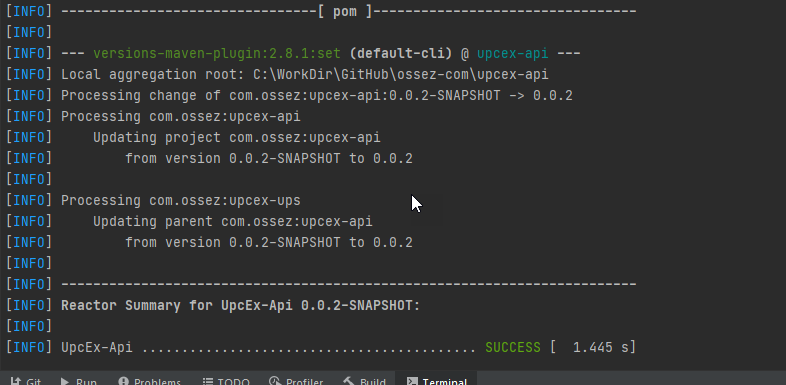
在将 Maven 的包上传到中央仓库并且创建发行版之前需要对包进行 GPG 签名。 如果你使用的是 Window 操作系统,请参考: https://www.ossez.com/t/windows-gpg-key/745 页面中的内容来对 GPG key 生成器进行安装,并且创建一个 key。 需要注意的时候,你创建的 Key 还要上传到 Key 的公钥仓库中,具体的办法请参考文章:https://www.ossez.com/t/gpg-maven-upload-your-public-key-and-try-the-operation/785 中的内容。 当你完成所有操作后,你就可以对你的 POM 文件进行修改了。 对 POM 文件进行修改 对 POM 进行有几个地方需要进行修改,有些地方的修改是一次性的。 我们假设你现在的 POM 不具有任何部署条件。 我们也是参考了官方的配置文件说明:https://central.sonatype.org/pages/apache-maven.html 首先你的版本号是不能包含有 -SNAPSHOT 这个关键字的。 可以使用下面的命令: mvn versions:set -DnewVersion=0.0.2 这个 mvn 的命令将会搜索你系统中的版本,并且将版本进行重命名并且统一。 从控制台的输出中,我们已经看到版本号进行了调整。 添加 maven-gpg-plugin 插件 在 pom 文件中,添加 maven-gpg-plugin 插件到插件列表中。 这个插件的位置是位于 build 下面的。 具体内容入下,你可以不需要对任何内容进行修改,如果你有高版本的话,也可以使用高版本。 <build> <plugins> <plugin> <groupId>org.apache.maven.plugins</groupId> <artifactId>maven-gpg-plugin</artifactId> <version>1.5</version> <executions> <execution> <id>sign-artifacts</id> <phase>verify</phase> <goals> <goal>sign</goal> </goals> </execution> </executions> </plugin> </plugins> </build> 添加 .m2 目录下的 settings.xml 需要添加的内容如下: <settings> <profiles> <profile> <id>ossrh</id> <activation> <activeByDefault>true</activeByDefault> </activation> <properties> <gpg.executable>gpg2</gpg.executable> <gpg.passphrase>the_pass_phrase</gpg.passphrase> </properties> </profile> </profiles> </settings> 需要注意的是可以执行的文件,在上面我们使用了 gpg2,如果你的操作系统中没有这个的话,你有可能会使用 gpg,这个与你的安装有关。 可以在 Windows 下运行 cmd,以确定 gpg 被添加到你的系统中了。 秘钥部分为最开始你创建的秘钥,这个是在 Kleopatra 中可以找到的。 根据你需要安装的秘钥,拷贝上面的 Key-ID 填到这里即可。 完成所有上面的配置后运行命令: mvn clean deploy 然后等待服务器的反馈结果。 一般来说需要几个小时后你的库才会被全世界都看到。 是不是很激动呀。 鼓励所有有条件的公司和个人都可以这样将开源项目上传到中央 Maven 仓库中。 https://www.ossez.com/t/maven-package-gpg/787
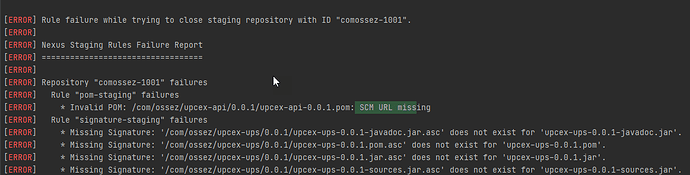
提示的错误信息为: [ERROR] Repository "comossez-1001" failures [ERROR] Rule "pom-staging" failures [ERROR] * Invalid POM: /com/ossez/upcex-api/0.0.1/upcex-api-0.0.1.pom: SCM URL missing 问题和解决办法 这是因为在你的 POM 文件中没有提供 SCM 的配置。 如果你是开源的,并且希望将代码上传到中央仓库的话,这个是必须要配置的。 例如,我们配置了 scm <scm> <url>https://github.com/ossez-com/upcex-api</url> <connection>https://github.com/ossez-com/upcex-api.git</connection> <developerConnection>https://github.com/ossez-com/upcex-api.git</developerConnection> </scm> 当配置成功后,再次上传就可以避免这个问题了。 其实在 SCM 中最重要的部分为 URL,这部分表示的是你项目的地址。 https://www.ossez.com/t/package-scm-url-missing/786
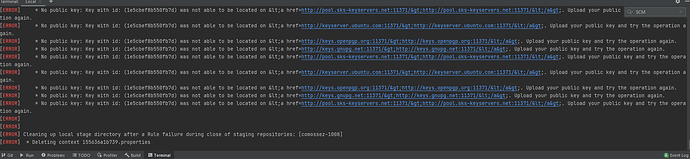
在本地使用 GPG 签名需要发布的包后进行上传到中央 Maven 仓库。 提示错误: [ERROR] * No public key: Key with id: (1e5cbef8b550fb7d) was not able to be located on <a href=http://keys.openpgp.org:11371/>http://keys.openpgp.org:11371/</a>. Upload your public key and try the operation again. [ERROR] * No public key: Key with id: (1e5cbef8b550fb7d) was not able to be located on <a href=http://keys.gnupg.net:11371/>http://keys.gnupg.net:11371/</a>. Upload your public key and try the operation again. [ERROR] * No public key: Key with id: (1e5cbef8b550fb7d) was not able to be located on <a href=http://pool.sks-keyservers.net:11371/>http://pool.sks-keyservers.net:11371/</a>. Upload your public key and try the opera tion again. 错误原因和解决办法 出现上面的错误的原因是你本地使用 GPG 签名了,但是你的公钥没有上传到服务器上。 这将导致你签名没有办法被使用。 解决办法就是将你的公钥上传上去。 登录: https://keys.openpgp.org 网站 输入你的签名的电子邮件地址进行校验。 如果你的公钥已经上传的话,当你输入你的邮件地址,你将会看到下面的提示,表示的是用户电子邮件地址已经被找到了。 如果提示如下,表示的是你的邮件地址没有找到,你需要将你的公钥上传。 如果你使用的是 Window 的环境,相信在创建 GPG 的时候,你已经安装了Kleopatra,你可以运行 Kleopatra。 然后找到你的秘钥。 右键选择导出。 将这个导出文件保存后,再次返回 https://keys.openpgp.org/ 网站, 选择 上传。 然后选择上一步导出的文件,单击上传 请注意,当你上传成功后,系统会向你的秘钥中的邮件地址发送一个电子邮件过去。 在这个电子邮件中包含有一个链接,你需要单击链接确定后才会完成上传。 当完成所有操作后,刷新浏览器,然后使用你的电子邮件进行搜索。 如果你能够和第一步一样搜索到数据,那么说明你的公钥已经上传上去了。 重新运行 Maven 随后再在项目中运行 mvn clean deploy,需要耐心等待一些时间。 等最后你应该可以看到部署成功,并且签名什么的不会有什么问题了。 如上图提示的部署成功的 Maven 界面。 https://www.ossez.com/t/gpg-maven-upload-your-public-key-and-try-the-operation/785
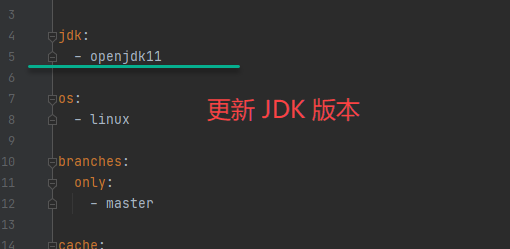
可以在 .travis.yml 文件中定义使用的 JDK 版本。 在文件中: jdk: - openjdk8 在上面中定义了 JDK 的版本。 如希望使用 JDK 11 的版本的话,你可以定义为: jdk: - openjdk11 下面的代码,然后再提交代码到 CI 中进行编译。 然后通过 CI 的界面中进行查看,你可以看到 CI 已经使用更新后的版本。 然后你可以从构建 CI 的日志中查看编译的情况。 https://www.ossez.com/t/travis-jdk/781
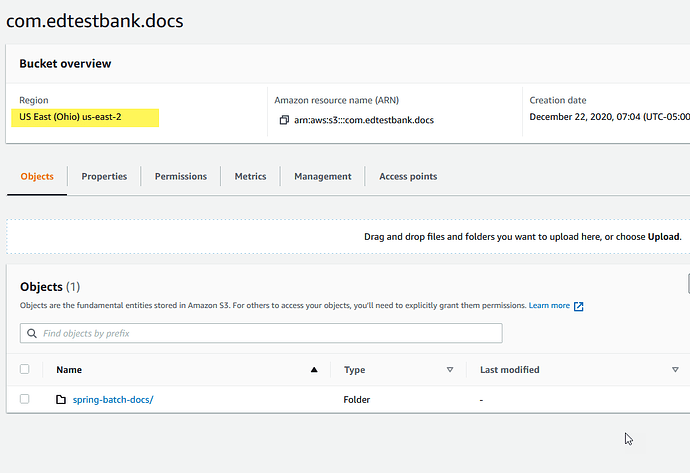
具体的提示错误信息如下: uploading "asciidoc/js/jquery-3.2.1.min.js" with {:content_type=>"application/javascript"} /home/travis/.rvm/gems/ruby-2.4.5/gems/aws-sdk-core-2.11.632/lib/seahorse/client/plugins/raise_response_errors.rb:15:in `call': The bucket you are attempting to access must be addressed using the specified endpoint. Please send all future requests to this endpoint. (Aws::S3::Errors::PermanentRedirect) 这是因为在我们的配置文件下 travis 将会把数据存储到 S3 的 us-east-2 存储区。 如果你的 S3 存储没有设置到正确的存储区的话,你使用 travis 将数据上传到 S3 将会提示错误。 请参考 https://docs.travis-ci.com/user/deployment/s3/ 官方文档中有关 AWS S3 的配置。 当然你也可以在配置文件中添加 region: eu-west-2 来指定特定的存储区。 然后再次编译,你就发现编译成功的文件已经上传上去了。 https://www.ossez.com/t/aws-s3-travis-aws-permanentredirect/780
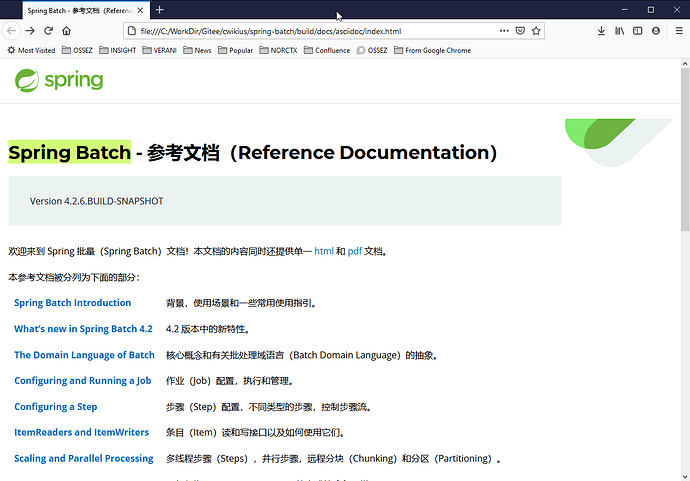
为了便于访问,你可以使用我们提供的一个仓库来在本地进行编译参考文档。 然后通过访问能够在本地查看参考文档,如下图。 克隆仓库 为了加快访问速度,我们将 GitHub 的内容同步到了 Gitee 上。 你可以先克隆仓库到你的本地。 仓库地址为:https://gitee.com/cwikius/spring-batch.git Gradle 编译 当你可能完成后,进入你克隆的地址,然后运行命令: gradlew asciidoctor 等编译完成后,会在你本地的目录中,创建一个 build 的目录。 访问编译结果 进入 build 文件夹后,访问 build\docs\asciidoc 目录中的内容。 然后双击 index.html 文件,就可以看到最新的编译内容和结果。 如果您对我们翻译和文档的内容有任何修改和建议的话,请访问 https://github.com/cwiki-us-spring/spring-batch 仓库地址来提交 PR。 https://www.ossez.com/t/spring-batch/777
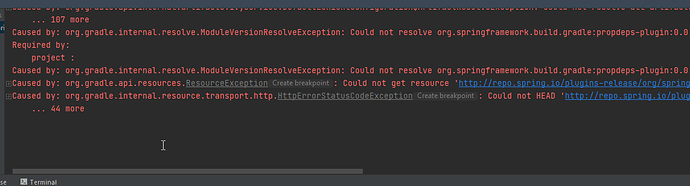
在对 Spring Batch 源代码进行编译的时候,提示仓库配置错误错误: org.gradle.api.resources.ResourceException: Could not get resource 'http://repo.spring.io/plugins-release/org/springframework/build/gradle/propdeps-plugin/0.0.7/propdeps-plugin-0.0.7.pom'. 根据官方的提示下面的这篇文章:https://spring.io/blog/2020/10/29/notice-of-permissions-changes-to-repo-spring-io-fall-and-winter-2020 在默认匿名用户访问的情况下,Spring Boot 的仓库有所调整。 针对 maven { url 'https://repo.spring.io/plugins-release' } 这个仓库地址,需要使用: maven { url 'https://repo.spring.io/plugins-release-local' } 来进行替代,以避免授权的问题。 完成上面的修改后,再重新编译就可以避免仓库地址的授权问题了。 https://www.ossez.com/t/spring-batch/776
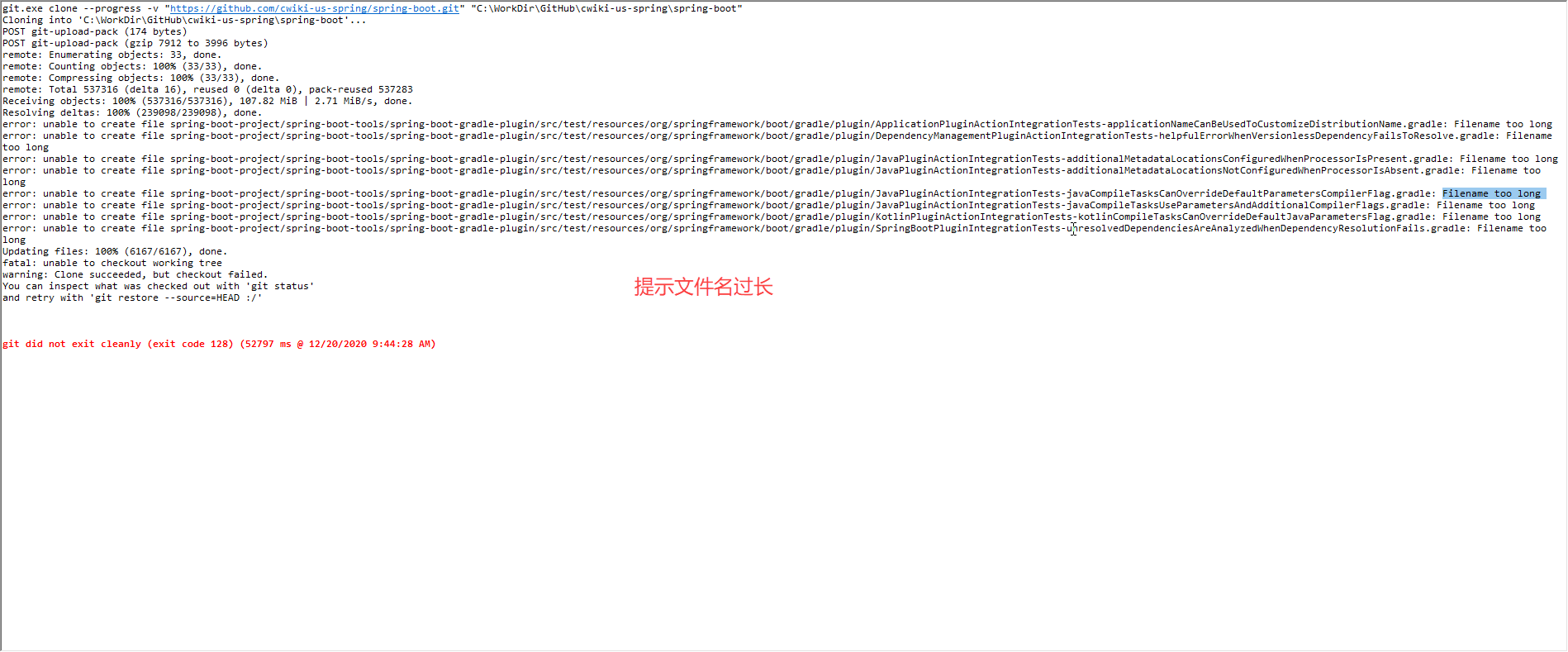
从 GitHub 克隆一个项目下发出现了错误: error: unable to create file spring-boot-project/spring-boot-tools/spring-boot-gradle-plugin/src/test/resources/org/springframework/boot/gradle/plugin/JavaPluginActionIntegrationTests-javaCompileTasksCanOverrideDefaultParametersCompilerFlag.gradle: Filename too long Git 可以创建 4096 长度的文件名,然而在 windows 最多是260。 因此有时候在项目中你可能会遇到文件名过长的问题。 可以执行下面的命令进行全局修改: git config --global core.longpaths true 然后再次执行克隆,就可以避免这个长文件名的问题了。 https://www.ossez.com/t/git-windows-filename-too-long/775
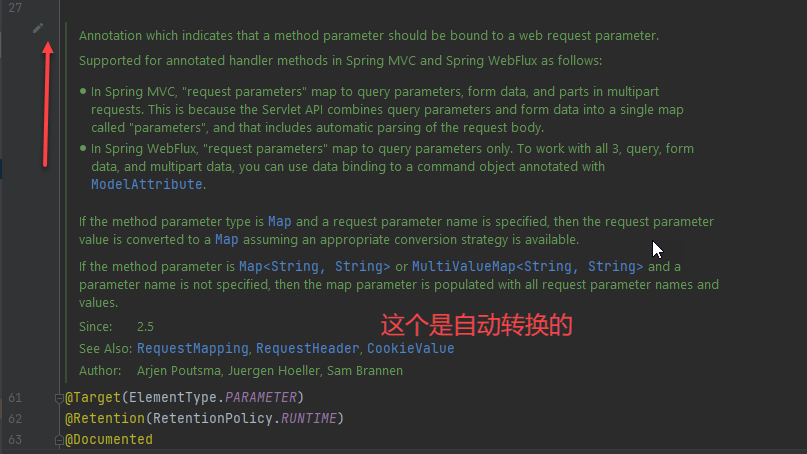
在默认的情况下,当你点击进去到代码中,IntelliJ IDEA 将会自动将问答转换为可读的模式。 当你单击左侧的笔的图标后,将会在编辑器中显示格式化之前的文档。 这个应该算是 IJ 的一个新功能,因为在以前的版本是不会这样做的,能够降低代码的阅读量。 https://www.ossez.com/t/intellij-idea-java/774
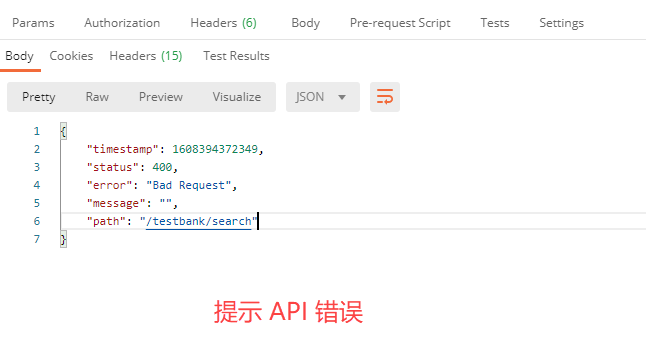
这个参数是 required 确定在 API 中的参数中是否必须要输出参数。 在默认情况下为 true,你可以设置这个参数为 false。 如果你设置的参数为 true,但是在提交参数的时候没有提交这个参数,你的 API 将会返回一个异常。 考察下面的代码: @GetMapping("/search") public ResponseEntity<?> searchTestBank(@RequestParam String id) { } 在上面的代码中,我们不指定了返回。 上面参数的定义是要求参数不为 null,如果你输入 null 的参数的话,你会在 API 看到下面的错误。 { "timestamp": 1608394372349, "status": 400, "error": "Bad Request", "message": "", "path": "/testbank/search" } 在上面的访问的时候提示了 Bad Request 错误,这是因为没有为发送参数到 API 中。 如果你修改代码为: @GetMapping("/search") public ResponseEntity<?> searchTestBank(@RequestParam(required=false) String id) { } 就可以避免这个问题了。 这个是 Spring Boot 的一个参数配置,可以根据实际情况进行配置。 https://www.ossez.com/t/spring-restcontroller-requestparam-required-false/773