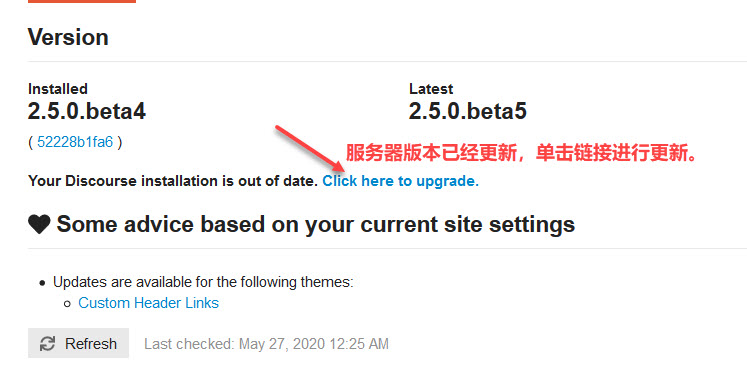
单击 Discourse 的 admin 界面。 如果你的服务器运行版本和当前 git 的版本不一样的话,你将会在界面中看到下面要求更新的提示。 如下图: 单击上面的链接进行升级。 在升级之前,你会看到当前版本升级所做的修改。 你单击上面修改commit 的链接将会直接带你进入到 GitHub 的页面中。 单击进入 GitHub 单击上面的链接后进入 GitHub 的提交列表中。 比较赞赏 Discourse 的这个功能,这个功能提供的是完全的开源和透明,能够让用户和软件同时成长。 大大的点赞。 升级 单击继续后,会有一个按钮需要你单击进行升级。 随后继续,你也可以重置升级。 这个升级过程需要耗费一些时间,因为首先需要 Pull 请求,然后还需要对请求进行编译。 当升级完成后,你将会看到下面升级已经完成的界面。 随后你可以单击上面的返回站点按钮校验你的站点能否被正常访问。 同时你可以可以查看管理员界面中当前的版本是是最新的版本。 为了安全,我们建议你可以对 Discourse 进行必要的升级。 https://www.ossez.com/t/discourse/105
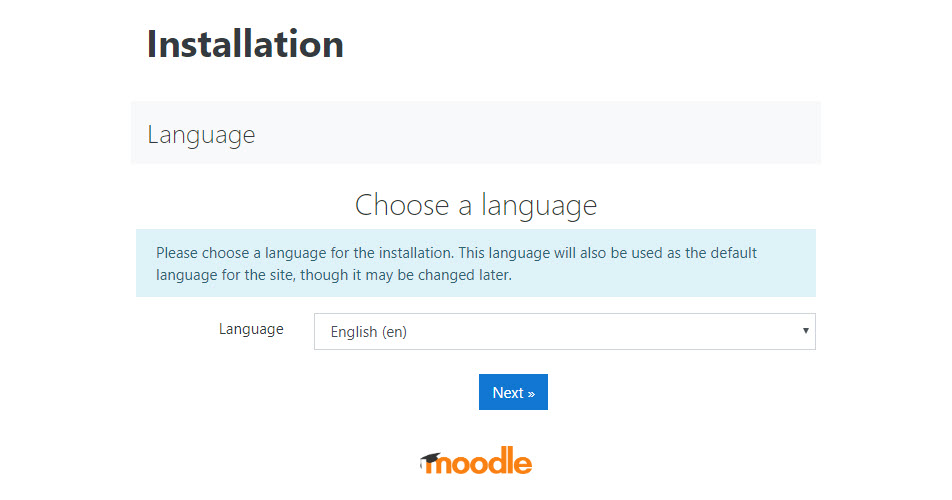
上传文件 在将所有文件上传到服务器上后,你可以访问 URL 进入安装程序。 设置安装路径 在将文件上传服务器后,然后需要设置安装路径。 你需要确定你的文件夹有足够的权限,能够写入数据。 设置数据库访问驱动 根据你设置的数据库不同,你需要设置不同的数据库驱动。 同时你的 PHP 需要安装 Mysql 的扩展。 设置数据库配置 你需要设置不同的数据库配置,比如说数据库名字,参数,用户名密码等。 确定通知后继续 你可以在确定通知后继续安装。 检查 PHP 的插件是否安装成功 如果插件没有安装成功的话,你需要安装 PHP 的扩展,然后重启服务器。 创建数据库表 在校验安装后,将会创建数据库表。 设置站点信息 在安装完成后,你需要对站点信息进行设置。 你可以在这个页面中输入你的站点信息后保存。 随后你就可以访问你安装的 Moodle 程序了。 https://www.ossez.com/t/moodle-3-8/102
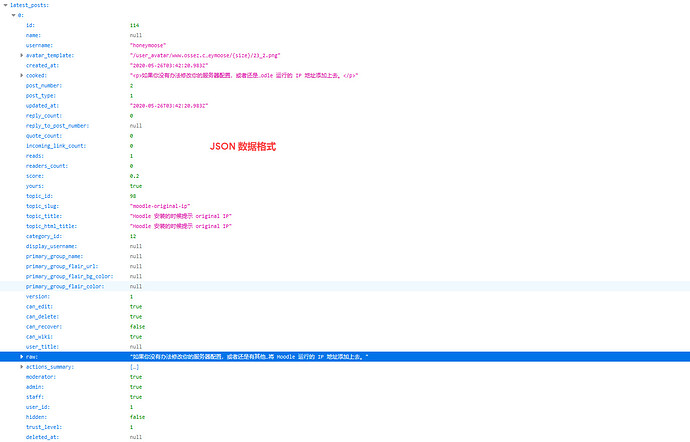
我们可能希望 Discourse 能够使用 RSS 或者 json 格式对数据对外进行发布和传输。 如果你可以查看代码的话,你可以使用下面的链接,能够提供相关的代码。 <link rel="alternate" type="application/rss+xml" title="Latest posts" href="https://meta.discourse.org/posts.rss" /> <link rel="alternate" type="application/rss+xml" title="Latest topics" href="https://meta.discourse.org/latest.rss" /> <link rel="alternate" type="application/rss+xml" title="RSS feed of topics in the 'releases' category" href="https://meta.discourse.org/c/releases.rss" /> 如果你部署了你自己的 Discourse 网站的话,你可以直接访问上面的链接。 这些数据能够让你提供给其他的平台进行处理。 如果你希望将你的网站添加到 Google 或者 Bing 或者其他的搜索引擎的话。 你可以直接将上面的链接提交,搜索引擎将会对其进行索引。 这样能够允许你进行自动添加,能够给你的网站带来更好的搜索引擎展示。 https://www.ossez.com/t/discourse/101/2
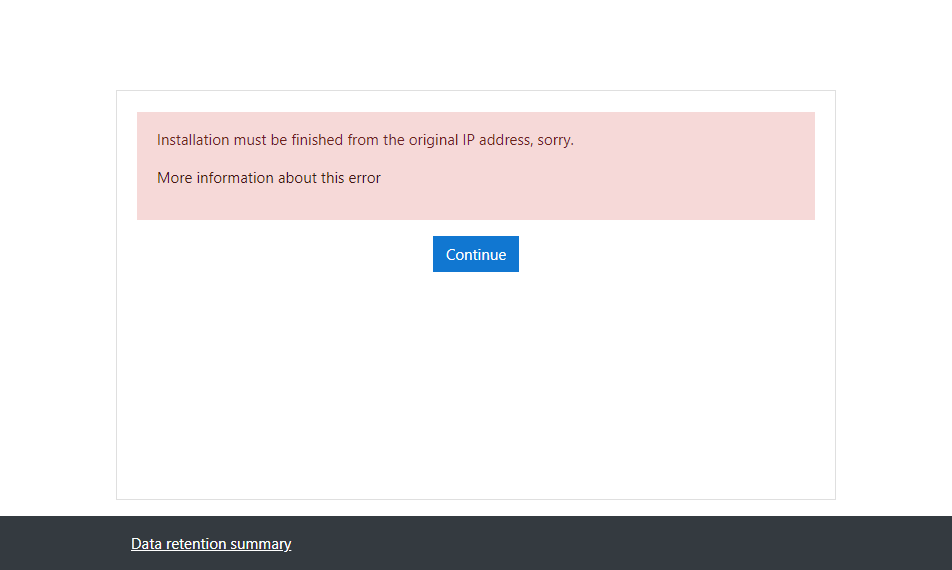
在安装 Moodle 的时候提示下面的错误,导致安装不能进行。 Installation must be finished from the original IP address, sorry 这是因为第一次安装的时候访问的 IP 地址与系统中记录的不一致。 你可以登录使用的数据库后运行下面的 SQL UPDATE mdl_user set lastip=‘75.143.6.191’ where username=‘admin’; 这个 IP 地址应该是你现在的机器地址。 这里有个问题是,如果你的服务器使用类似 CloudFlare 的 CDN 服务的话,每次访问你服务器的 IP 地址都会不一样,这里不管你怎么改可能都没有效果。 你需要将 CloudFlare 的 Proxy CDN 服务器停掉,让 CloudFlare 使用访问的原始地址。 另外,你可以访问 Apache 的 access.log 确定你的服务器当前接收的 IP 地址是什么。 https://www.ossez.com/t/moodle-original-ip/98

Computer Science
Apache 安装运行测时候提示错误 (13)Permission denied: AH00091: httpd: could not open error log file
Apache 提示错误信息为日志不能写入。 具体是: (13)Permission denied: AH00091: httpd: could not open error log file /var/www/html/vhosts/ossez.com/wiki.ossez.com/logs/errors.log. AH00015: Unable to open logs 导致这个问题的原因是 SELinux 运行在 enforcing 模式。 这个将会禁止 Apache 将日志写入到费标准的日志目录中。 你需要运行下面的命令将日志配置到 SELinux 中。 semanage fcontext -a -t httpd_log_t “/home/vhosts/ossez.com/(/.*)?” restorecon -Rv /home/vhosts/ossez.com 然后重启服务器,你应该可以看到没有这个错误了。 https://www.ossez.com/t/apache-13-permission-denied-ah00091-httpd-could-not-open-error-log-file/91
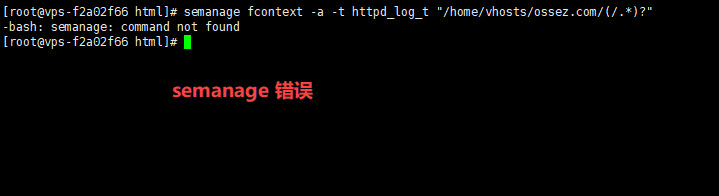
提示 -bash: semanage: command not found 的错误。 这是因为你还没有安装 semanage 你可以 运行下面的命令进行安装 yum install policycoreutils-python 需要注意的是,如果你运行的是 fedora 31 或者比较高的版本的话,上面的安装可能装不上去,提示包没有找到的错误。 你可以尝试运行:dnf install policycoreutils-python-utils 进行安装。 然后你可以运行 semanage -h 查看你的 semanage 是否已经在你的系统中安装完成了。 如果确定安装完成了,你就可以开始进行设置了。 如果你不知道你的命令在哪个包中。 你可以使用命令进行查找。 比如说 yum provides semanage policycoreutils-python-utils-2.9-5.fc31.noarch : SELinux policy core python utilities Repo : fedora Matched from: Filename : /usr/sbin/semanage 针对使用 yum 和 dnf 是一样的。 https://www.ossez.com/t/apache-selinux-semanage/90/2
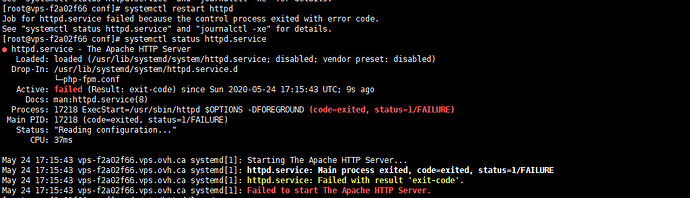
安装完成 Httpd 后出现错误: [root@vps-f2a02f66 vhosts]# systemctl status httpd.service ● httpd.service - The Apache HTTP Server Loaded: loaded (/usr/lib/systemd/system/httpd.service; disabled; vendor preset: disabled) Drop-In: /usr/lib/systemd/system/httpd.service.d └─php-fpm.conf Active: failed (Result: exit-code) since Sun 2020-05-24 16:56:11 UTC; 12min ago Docs: man:httpd.service(8) Process: 17168 ExecStart=/usr/sbin/httpd $OPTIONS -DFOREGROUND (code=exited, status=1/FAILURE) Main PID: 17168 (code=exited, status=1/FAILURE) Status: "Reading configuration..." CPU: 44ms May 24 16:56:11 vps-f2a02f66.vps.ovh.ca systemd[1]: Starting The Apache HTTP Server... May 24 16:56:11 vps-f2a02f66.vps.ovh.ca httpd[17168]: AH00558: httpd: Could not reliably determine the server's fully qualified domain name, using vps-f2a02f66.vps.ovh.ca. Set the 'ServerName' directive globally to suppress this > May 24 16:56:11 vps-f2a02f66.vps.ovh.ca systemd[1]: httpd.service: Main process exited, code=exited, status=1/FAILURE May 24 16:56:11 vps-f2a02f66.vps.ovh.ca systemd[1]: httpd.service: Failed with result 'exit-code'. May 24 16:56:11 vps-f2a02f66.vps.ovh.ca systemd[1]: Failed to start The Apache HTTP Server. 服务器的错误提示信息如下: 这是因为你的服务器没设置域名。 你可以设置本地域名后解决这个问题。 编辑 vi /etc/httpd/conf/httpd.conf 文件。 然后修改 ServerName localhost:80 为 localhost 或者取消注释这行。 然后重启服务器后,就可以修正上面的错误。 https://www.ossez.com/t/apache-httpd-ah00558/89
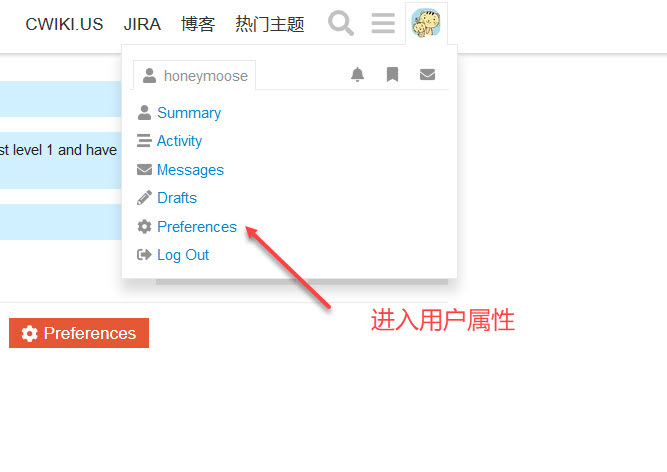
Discourse 修改用户的密码是如何进行修改的? 你可用登录系统的后台,然后进入属性页面。 需要注意的是, Discourse 的用户密码修改,需要使用电子邮件。 你需要让系统发送重置你密码的链接,你需要注意系统的邮件地址不在你的垃圾邮件中。 然后单击上面的按钮,然后单击链接发送重置密码的链接。 随后在你的电子邮件中,按照发送过来的链接后重新输入你的新密码就可以了。 https://www.ossez.com/t/discourse/86
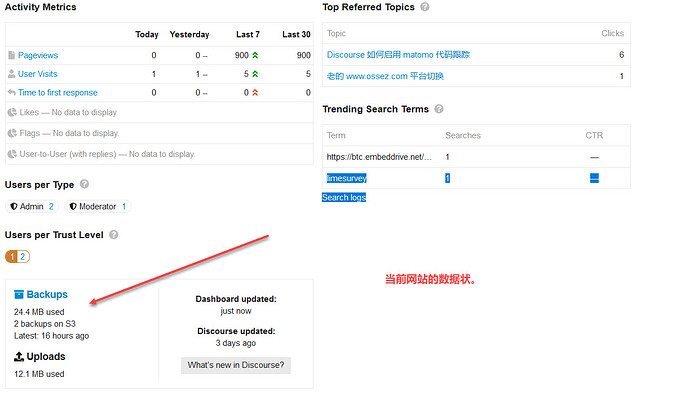
如果你是 Discourse 管理员的话,你可以登录系统后台然后查看当前的数据库状态。 数据状态主要包括有数据备份文件的大小和上传文件的大小。 在这个界面中对你当前系统的附件大小和你的备份大小会有一个数据量的评测。 同时也会告诉你,你的备份存储在什么位置。 https://www.ossez.com/t/discourse/83
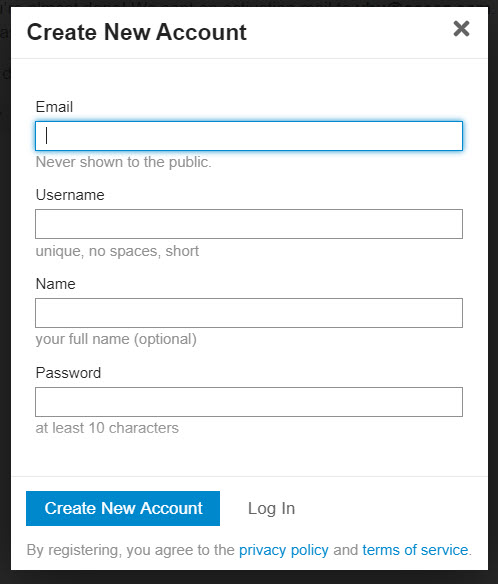
在默认的情况下 Discourse 限制用户输入密码的长度要超过 10 个字符。 这个实在是太长了,用户交互性不好。 如何修改这个密码长度到 6 位? 你可以登录后台的管理员界面,然后搜索关键字 password 你可以看到上面有 2 个选项,一个是登录用户的密码,一个是管理员的密码。 在默认情况下,登录用户的密码是 10 位,管理员的密码是 15 位。 系统允许的最短的密码位数为 8 位。 所以你是没有办法设置到 6 位的。 为了更好的交互,我们建议登录用户的密码设置为 8 位,管理员的密码可以考虑设置为 10 位,或者都设置为 8 位。 你可以修改上面的配置,然后保存就可以了。 修改配置后,保存退出。 https://www.ossez.com/t/discourse/82